DaDesktop for Participants – A How-To Guide
Objective
This guide is for participants (students) who want to join a course running on DaDesktop.
Overview of DaDesktop
DaDesktop is a cloud platform built specifically for IT training. Designed for IT instructors and learners across Greece, it delivers virtual desktops using the revolutionary DaDesktop® technology. During sessions, each participant gets a complete online desktop to work through exercises, with the trainer able to monitor their progress.
It consists of three main components:
- Management Console – a web-based interface for system administration, such as launching and stopping cloud desktops.
- Training Room – a shared environment for remote desktop sharing, audio, chat, and recording lessons.
-
Remote Desktop – a virtual machine (Windows or Linux), with one dedicated machine per user.
Requirements
To join from your office or home, you'll need:
- A computer (PC or laptop) with a stable internet connection (at least 10 Mbit/s download and 1 Mbit/s upload). Windows, Mac, and Linux are all supported.
- Chrome or Firefox browser.
- A decent microphone or headset (telephone audio is a last resort and not recommended).
-
A quiet, distraction‑free space (a coffee shop won't cut it).
Recommended:
- Webcam.
- A second monitor: follow the trainer on one screen while using your DaDesktop virtual machine for labs on the other.
- Turn off any VPN before joining the course.
- If possible, disable security software that might interfere with the network connection.
- Use an Ethernet connection if available; if you must use Wi‑Fi, run a speed test beforehand (e.g., speedtest.net).
You may want to test‑join your course and explore your DaDesktop virtual classroom before the course starts. If you do, note that access to the Desktop itself is limited to 15 minutes on days prior to the course start date.
Accessing Your Course
Please be aware that outside of scheduled course days, access is limited to a 15‑minute window.
On course days, you can access it all day. (Previously, access was only granted about an hour before the session.)
Keeping Your Desktop After the Course
A standout feature of DaDesktop is that participants can continue using their machine after the course ends.
See the link above for complete instructions.
Joining a Course
Click the link provided by the coordinator (e.g., dd4t.dadesktop.com/da/join/xxxxx).
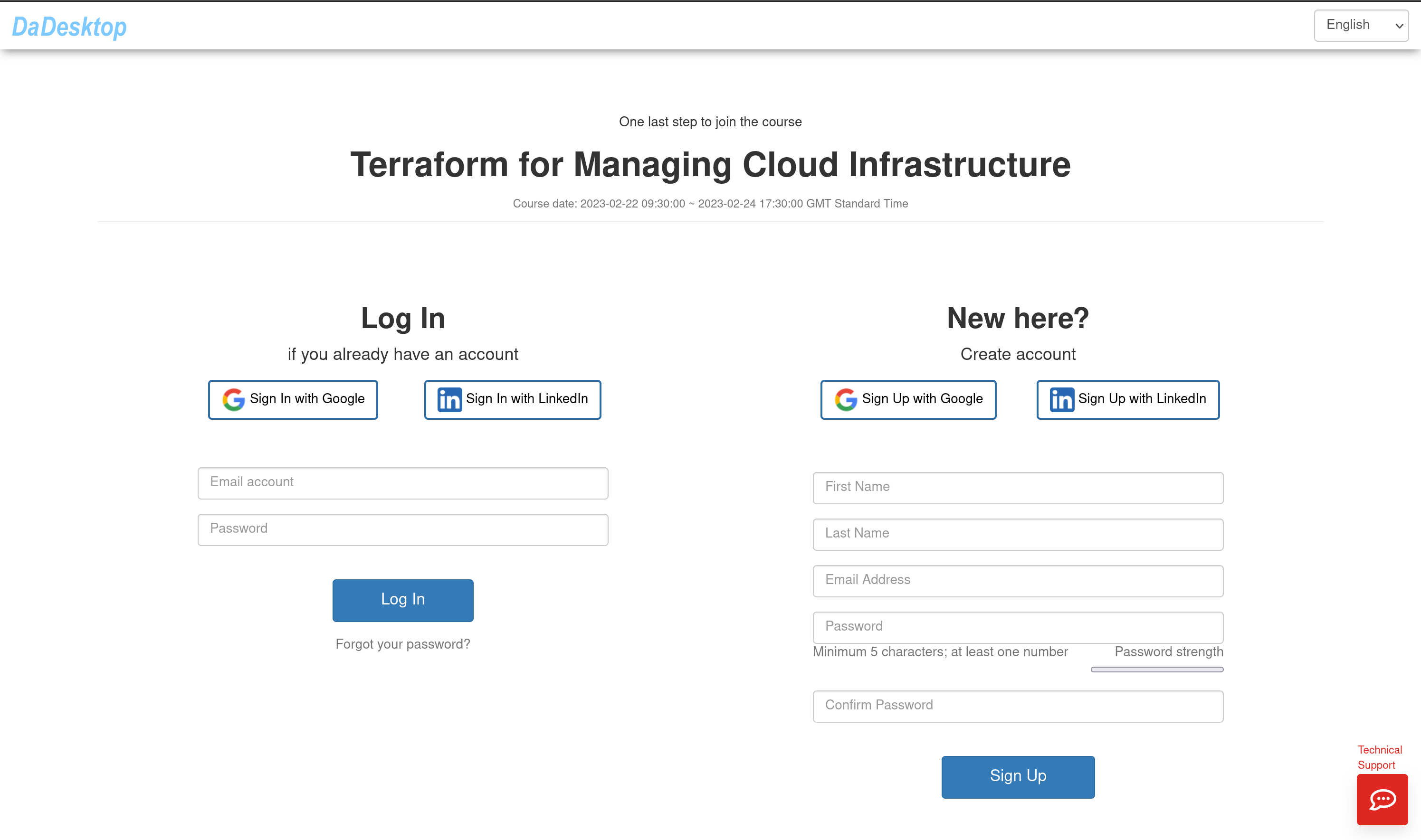
Image 01
If this is your first time, fill in your details under "Account" and click “Sign Up”. You can either use the form or sign up with your Google or LinkedIn account.
If you already have an account, just log in.
This opens the Management Console for your course.
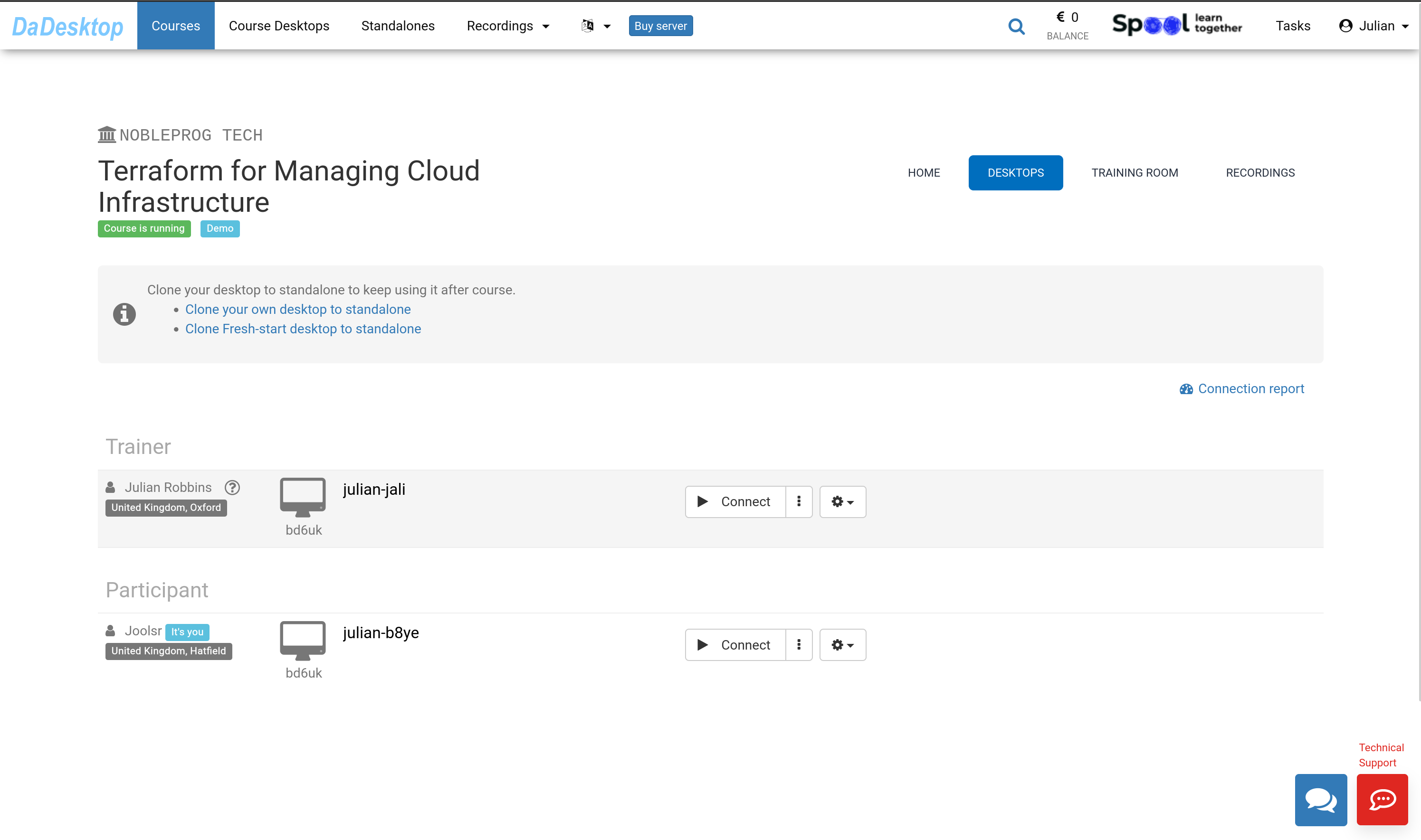
Image 02
Using the Management Console
Go to the "TRAINING ROOM" tab.
Click the "Join Training Room" button.
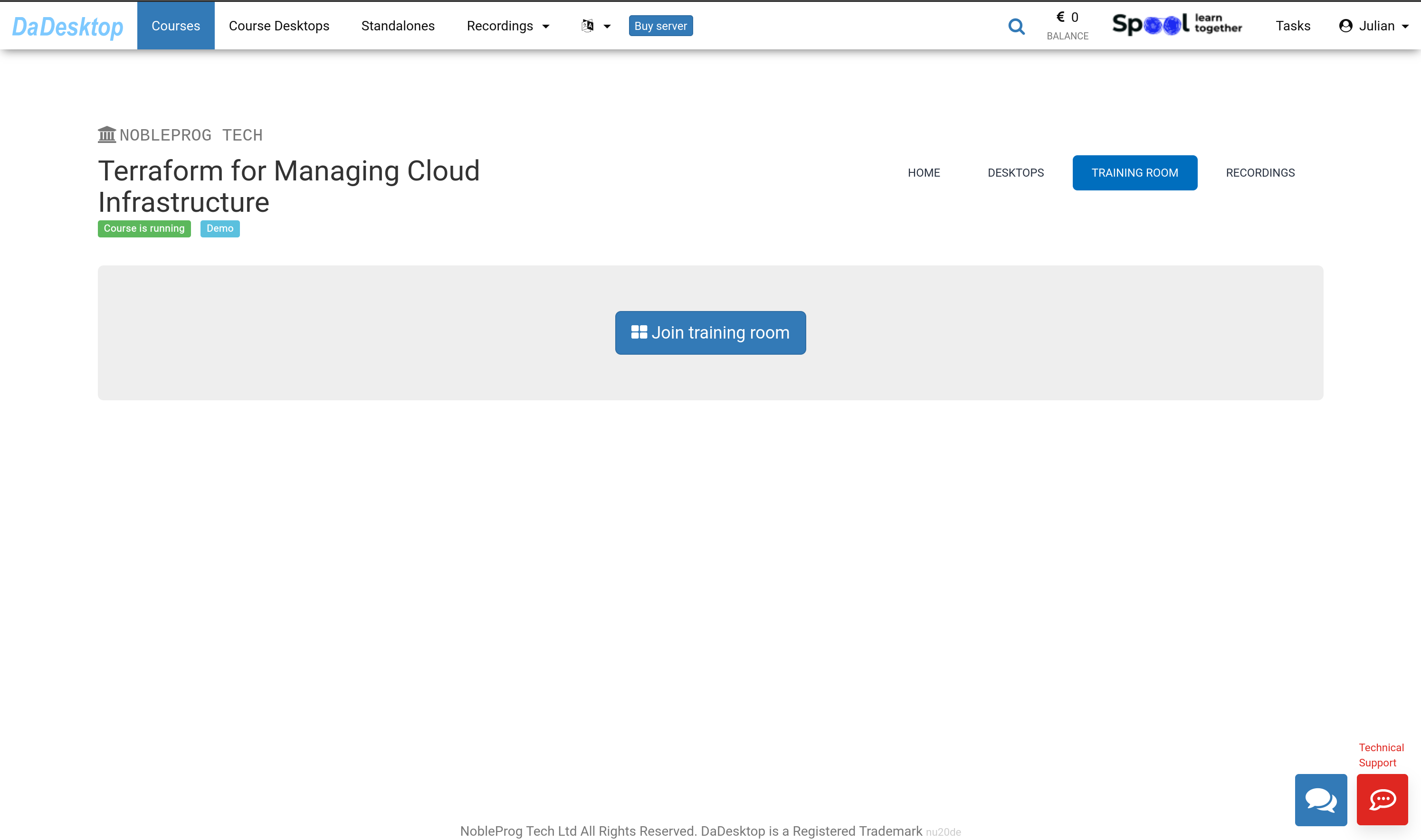
Image 03
The Virtual Training Room opens in a new browser tab. A pop‑up will ask for permission to copy items to the clipboard – click "Allow".
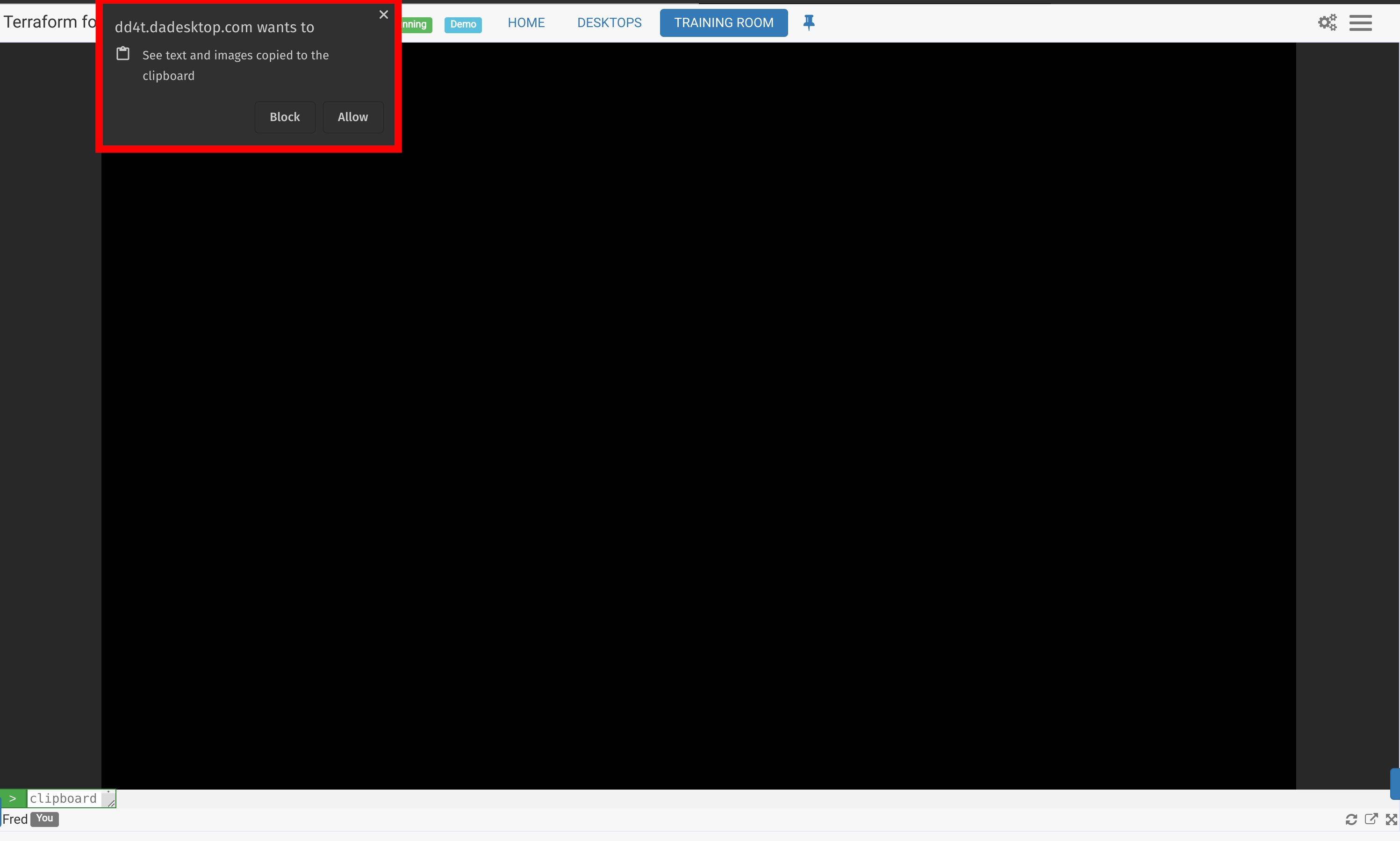
Image 04
Navigating the Training Room
The Training Room appears with a tab at the top of the screen that contains links back to your course.
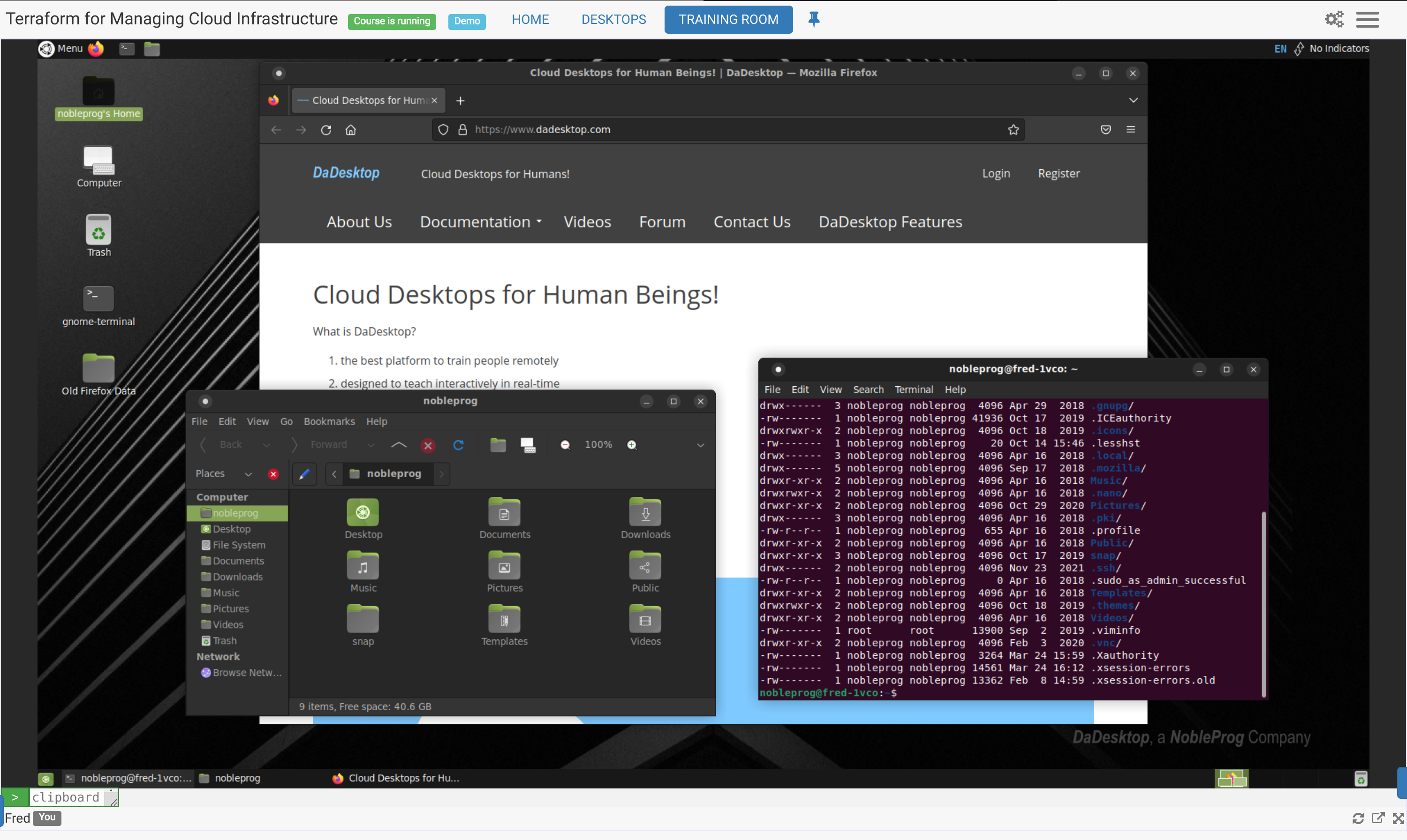
Image 05
Controls at the Bottom of the Screen
- You can 'pop out' the screen onto another monitor, or maximise the browser window to full screen.
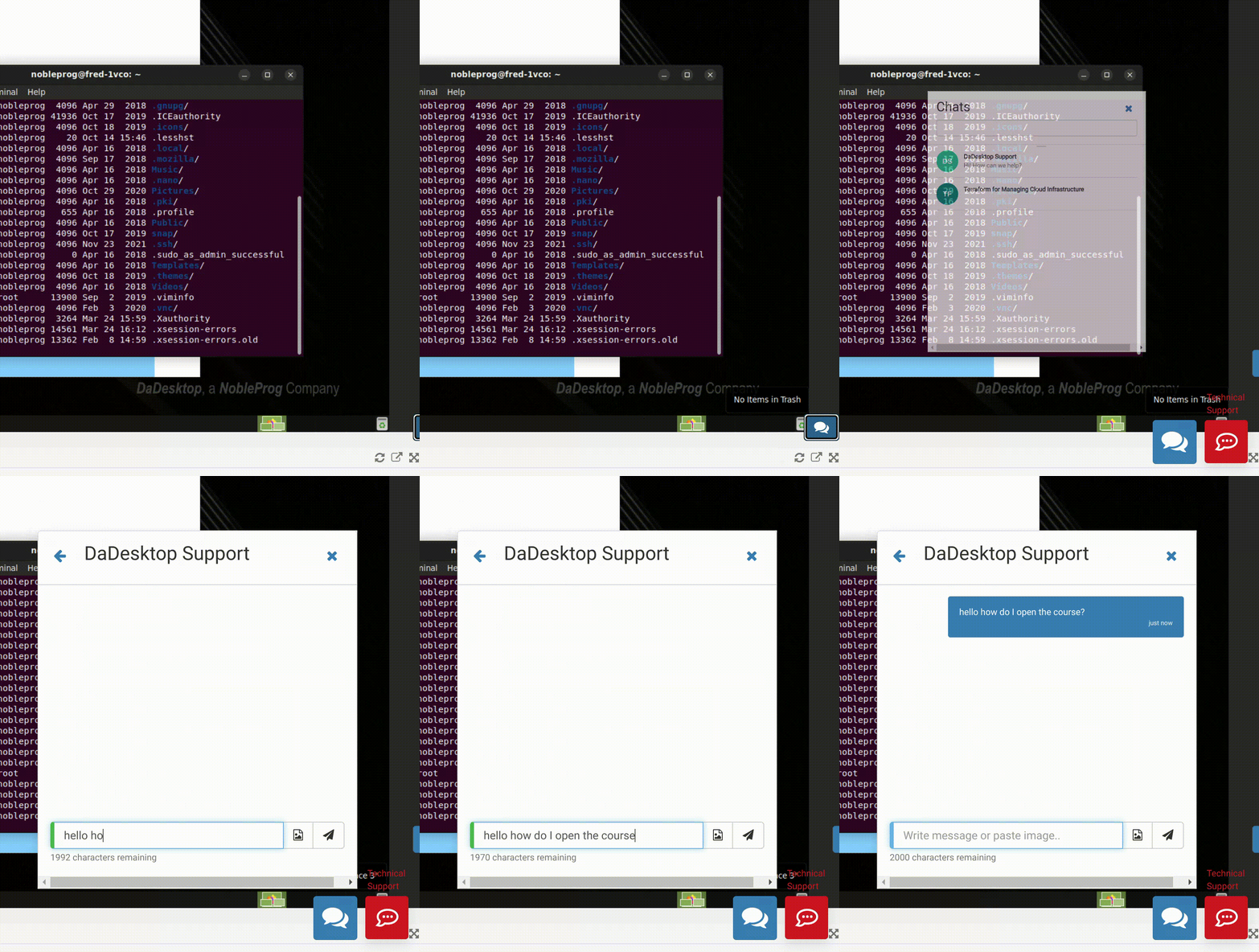
- At the bottom right, a small blue toggle lets you open the DaDesktop support chat.
Using the New Clipboard Feature
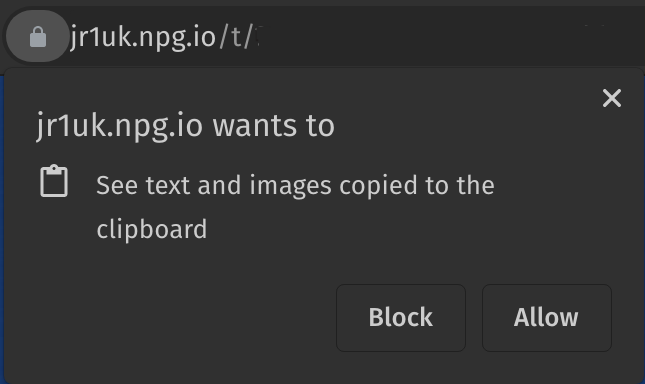 To transfer text – such as web links or commands – from your own computer into the Virtual Machine, we use the Clipboard.
When you connect to your online course or stand‑alone desktop, a pop‑up like the one shown will appear. Click ‘Allow’. (Note: images cannot be copied to the clipboard with DaDesktop at this time.)
Image 06
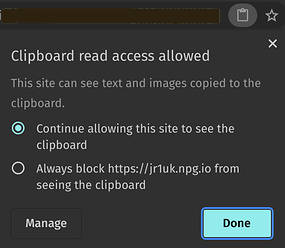 Click the small clipboard icon in the address bar to adjust clipboard settings for this site.
Usage
- On Windows and Linux VM desktops, copy and paste as usual from your PC: Ctrl+C and Ctrl+V.
- On a Mac host, copy as usual, then paste by pressing Shift+Ctrl+V or using the middle mouse button.
Image 07
Please contact us if you need additional help with this feature.
Legacy Clipboard (only for browsers that don't support the new Clipboard, like Internet Explorer, or as a fallback)
- To copy text between your machine and the DaDesktop virtual machine, type or paste into the clipboard area at the bottom left of the screen.
-
On the virtual machine, paste the clipboard contents by clicking the middle mouse button (or mouse wheel). This works anywhere in DaDesktop where text input is accepted, assuming you're using the standard Linux virtual machine.
For Mac users: use Command‑C (or ⌘C) to copy and Command‑V (or ⌘V) to paste. After pasting into the DaDesktop clipboard, inside dd4t use Control‑X, C, and V for cut, copy, and paste. - On a Windows virtual machine, right‑click to paste from the clipboard.
To resize the clipboard area, click the green‑and‑white arrow icon at the bottom left.
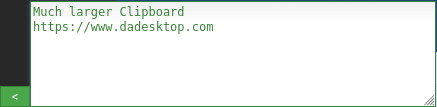

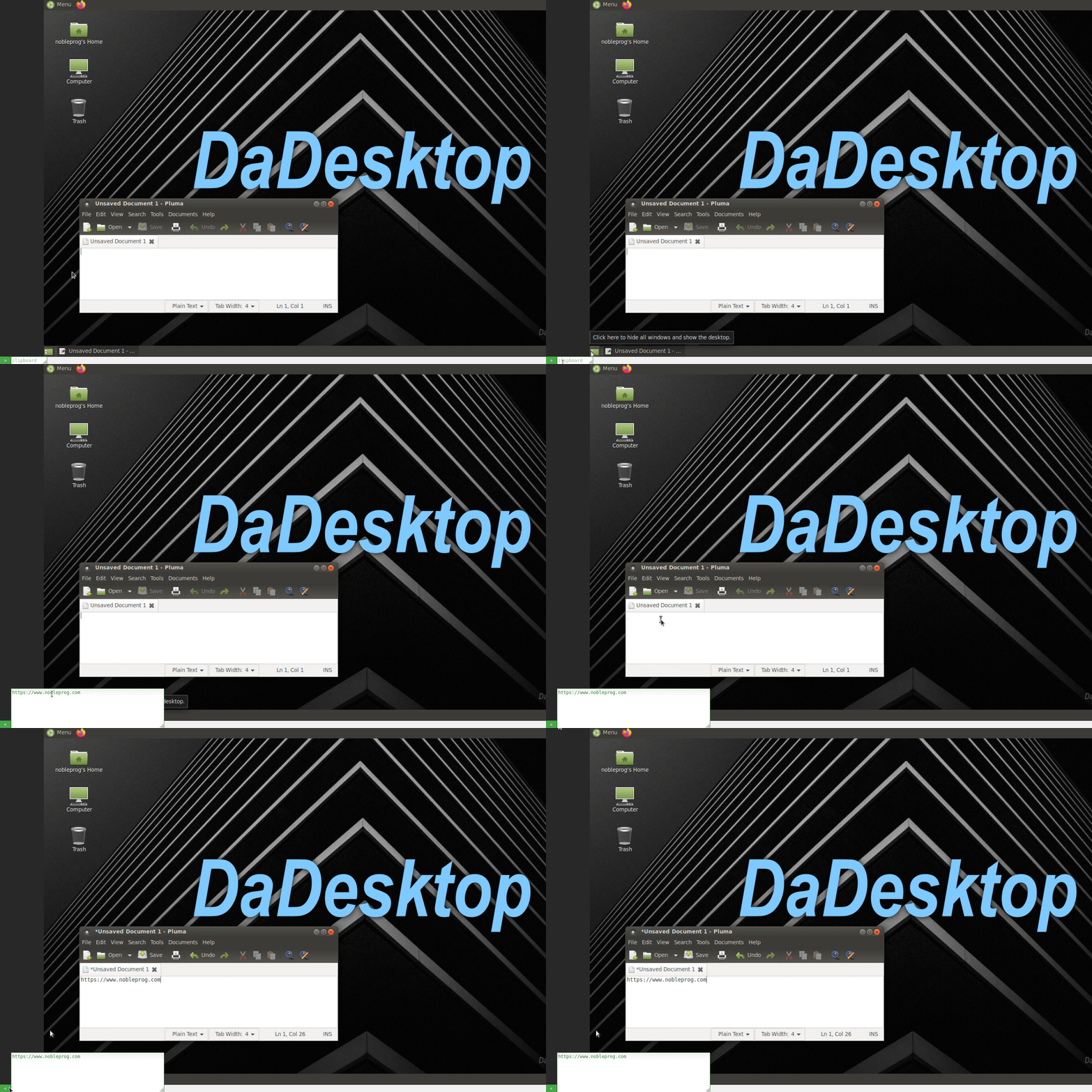
Image 08
Using the Mouse in Multi‑User Sessions
When multiple users connect to the same desktop, the name of the person controlling the mouse appears alongside the cursor. This is especially handy during collaborative sessions or training exercises where control of the mouse changes hands.
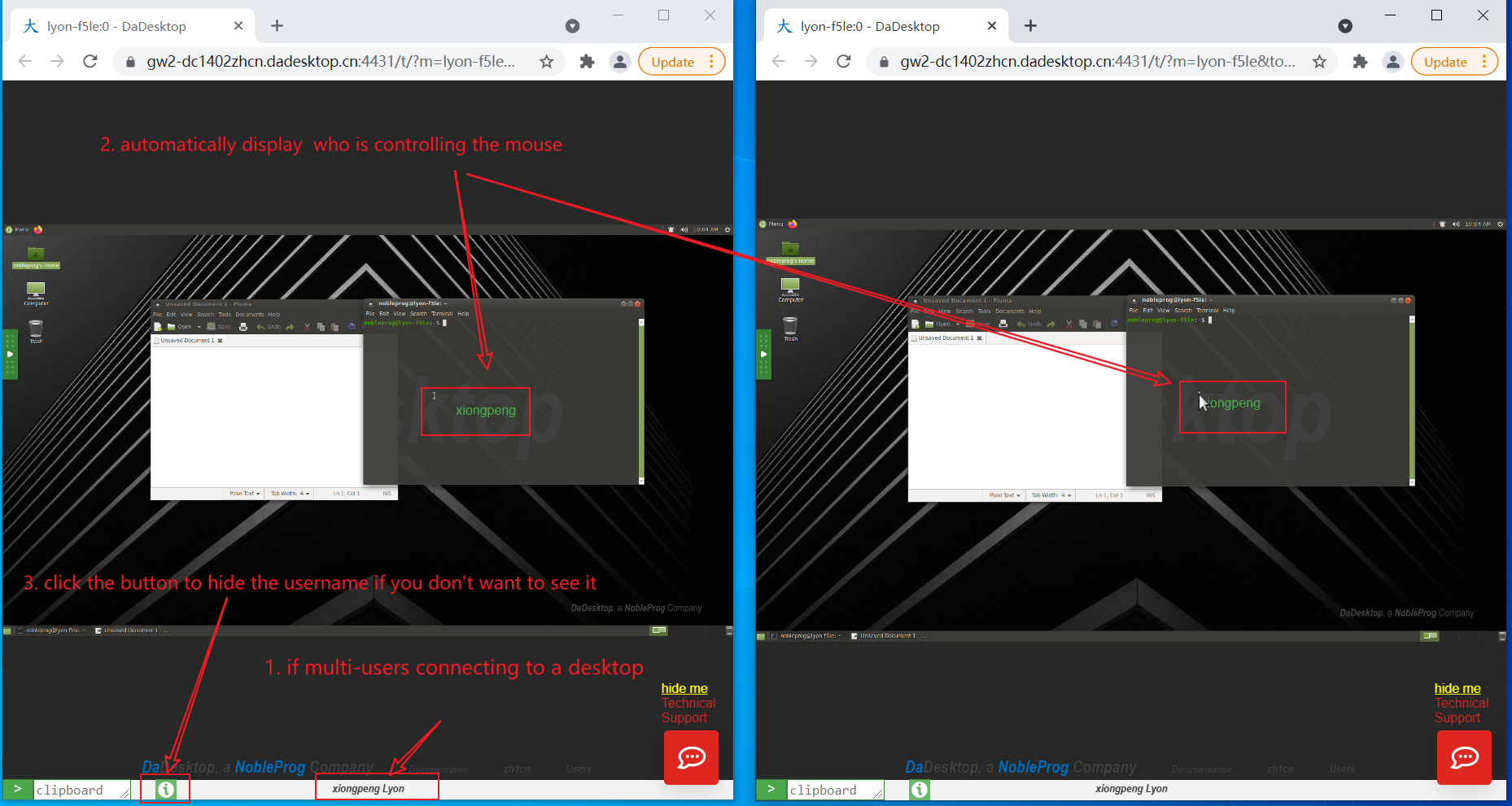
Image 09
If more than one person is connected, all usernames appear in the centre at the bottom of the screen.
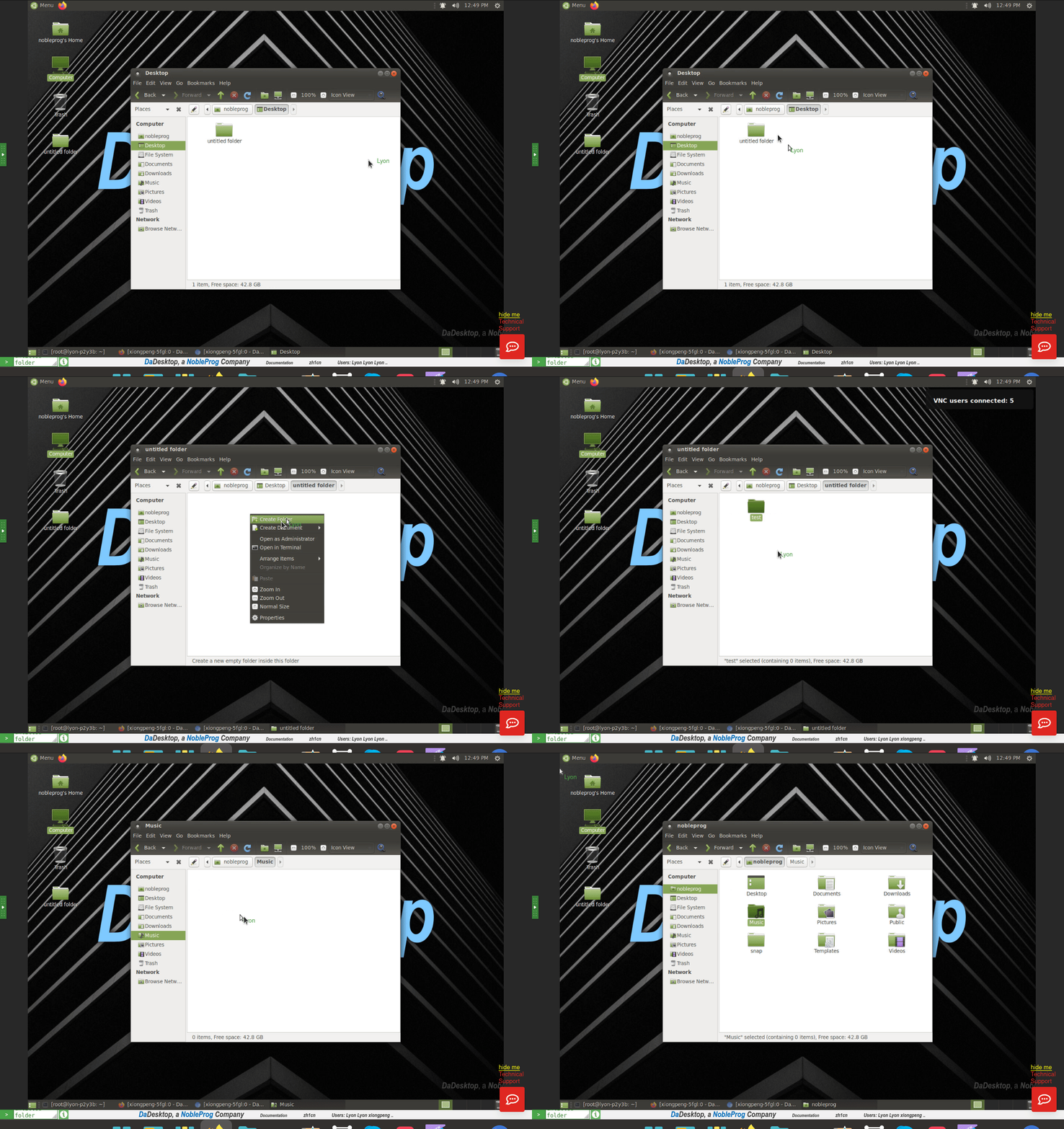
Image 10
You can toggle this feature by clicking the green ‘Info’ button at the bottom of the screen.