Managing Servers
Within your On-Premise or OEM DaDesktop cloud, you have the flexibility to add or remove servers as needed.
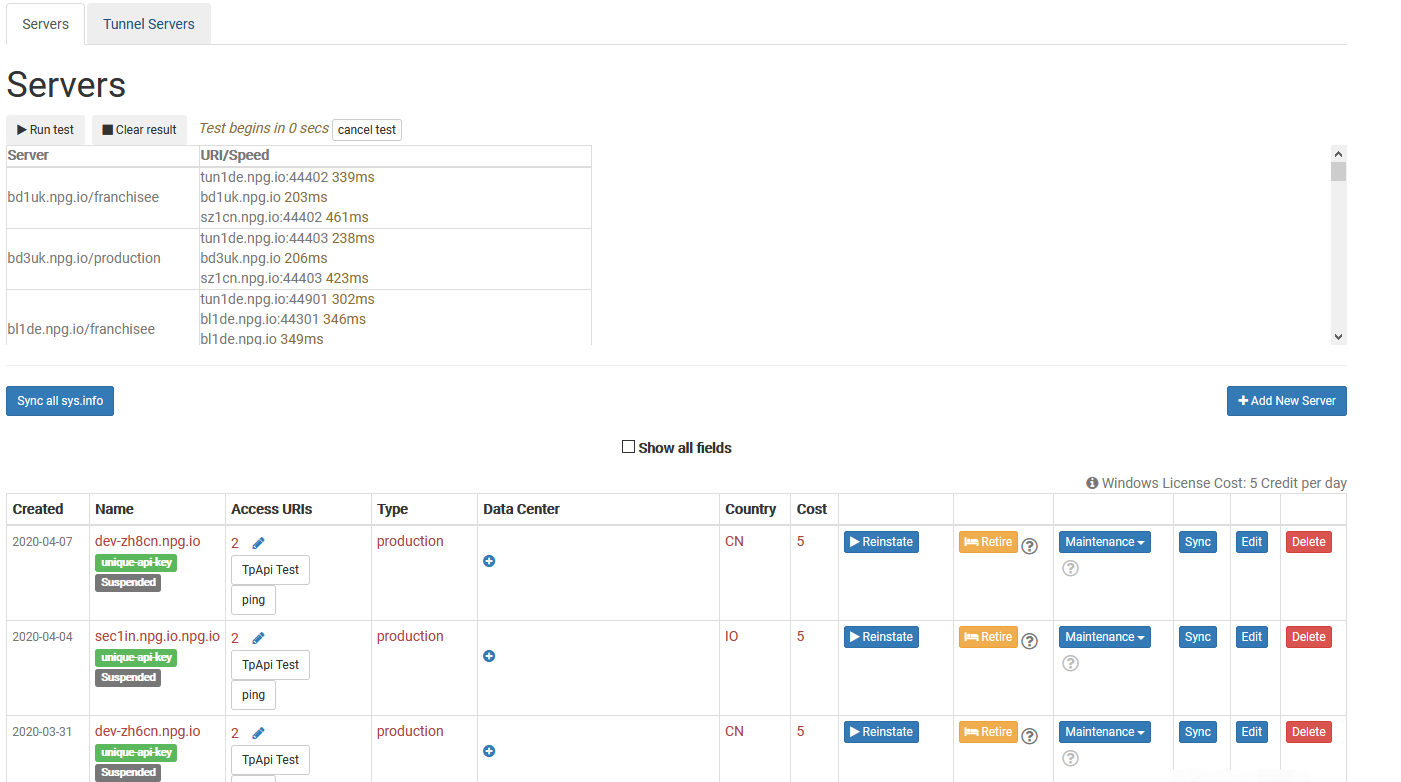
Sync all sys info
It examines each server's CPU, memory, and other specifications, then refreshes the details in the database. DaDesktop relies on this data when suggesting servers to users, prioritizing those with greater resources.
After updating hardware, you can choose to sync all servers or just a specific one.
Keep in mind that if you have over 1000 servers, the sync process might take a few minutes.
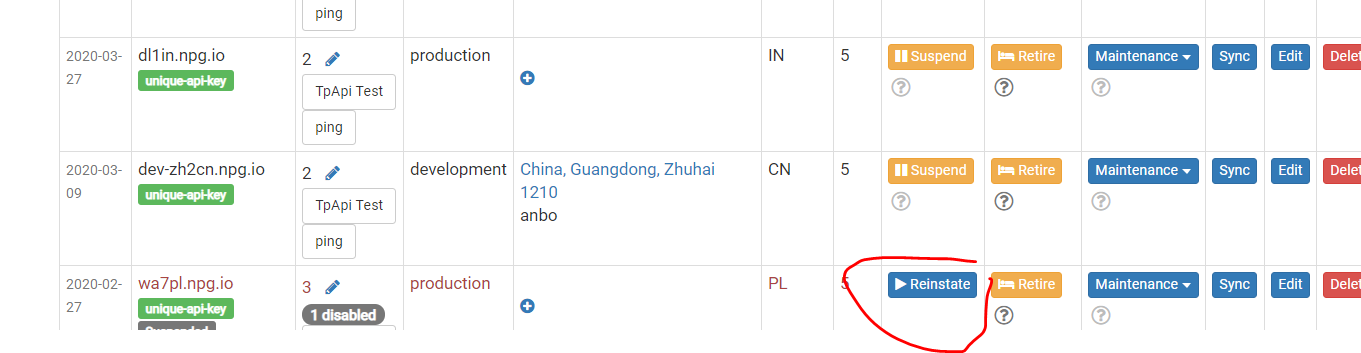
Change State (Suspend, Reinstate)
Suspend a server when it's unreachable. This stops the DaDesktop GUI from attempting to check the server's status and its desktops.
You can apply this setting if a server is unavailable due to a malfunction.
Retiring Server
When you decide to stop using a particular server, you can switch it to retirement mode. This ensures no new desktops are created on it. Already existing desktops remain usable or can be moved to other servers.