Resizing the disk of a Fresh-Start desktop within a course
If your current Fresh-Start machine is running short on disk space, you can easily expand it to gain more room.
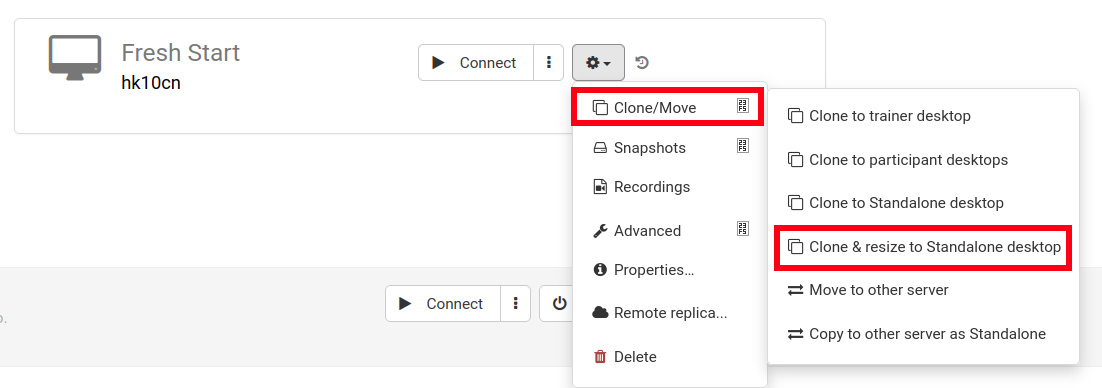
To begin, stop the Fresh-Start machine.
Next, select Clone & Resize to convert it to a Standalone machine (if you haven't created an organization yet, do so now).
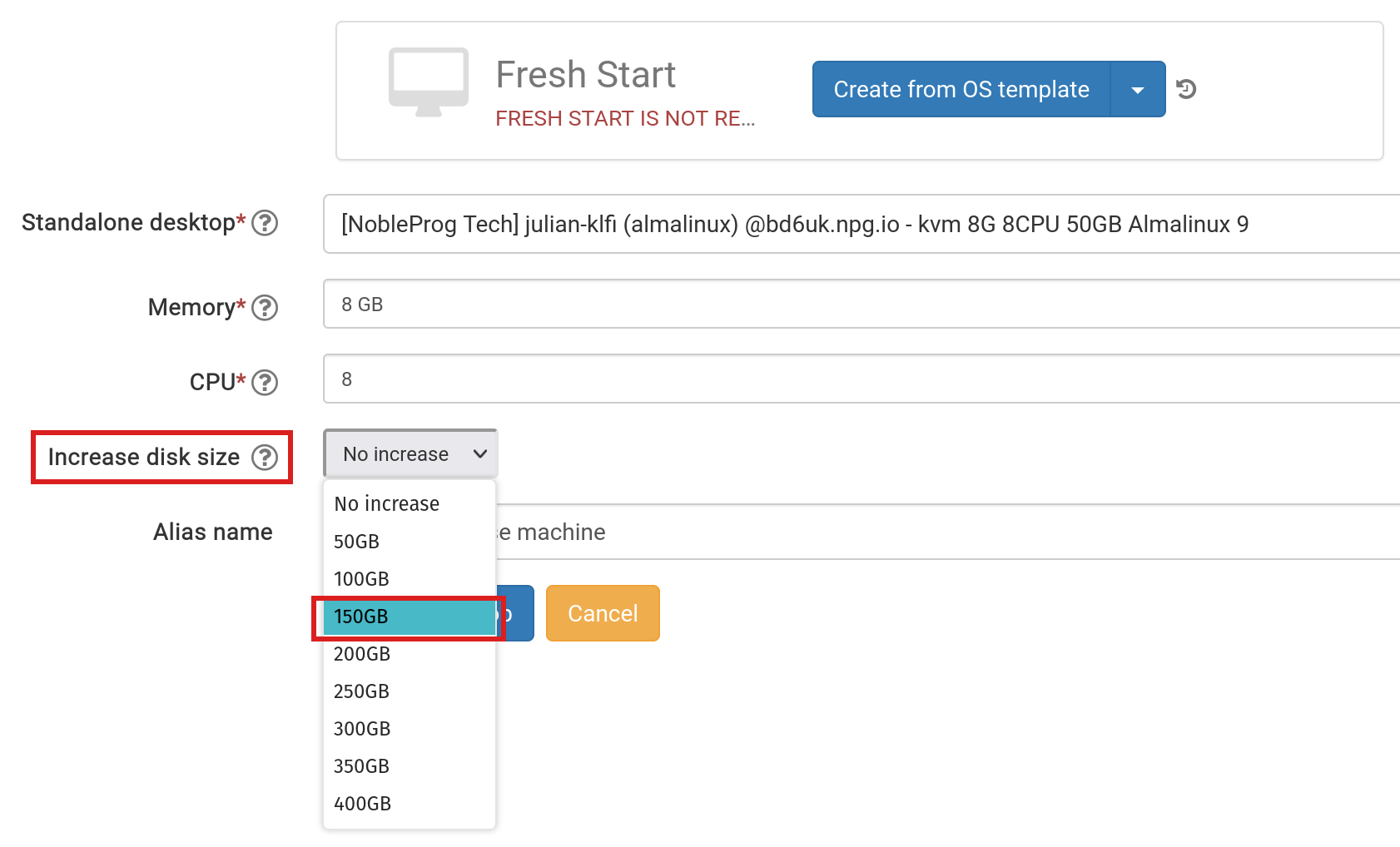
Here, bump up the disk size to the value you need and submit.
Head over to the 'Standalones' link at the top of the page, find your machine, and verify it's listed.
Go back to the course and remove the original Fresh-Start machine by clicking its 'Delete' button.
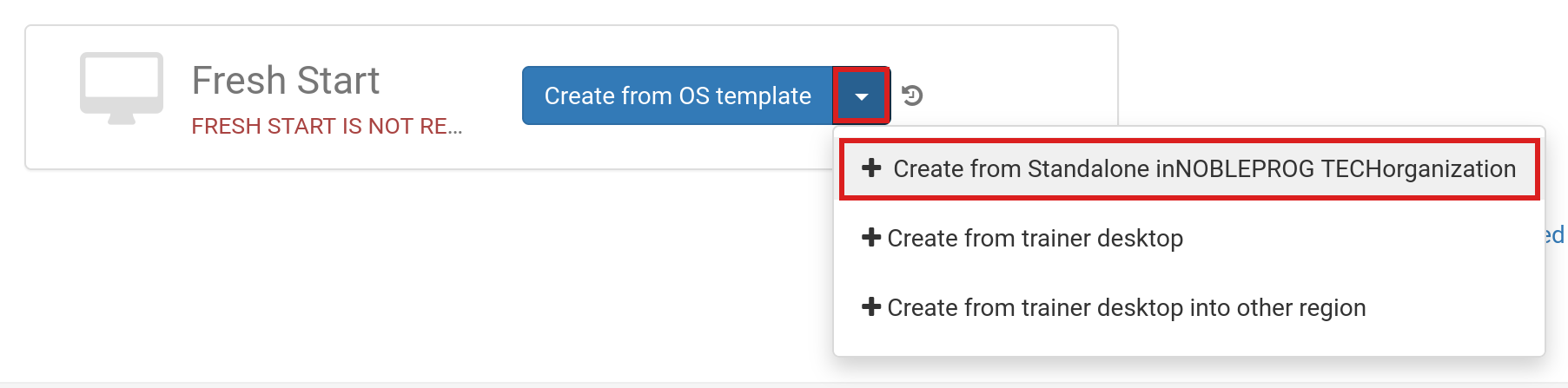
Click the 'Create Fresh-Start from my Standalone' button
In the 'Create from Standalone' window, you can also increase the disk size now if you missed that step earlier.
Provide an alias name if desired, and then hit the 'Create Desktop' button.
For standard DaDesktop Linux and Windows OS templates, the operating system expands automatically. Note: AlmaLinux standard templates configure their default partitions differently, so you'll need to perform extra manual steps, as outlined below.
When using custom OS templates, automatic partition extension might not happen—follow the manual steps shown below.
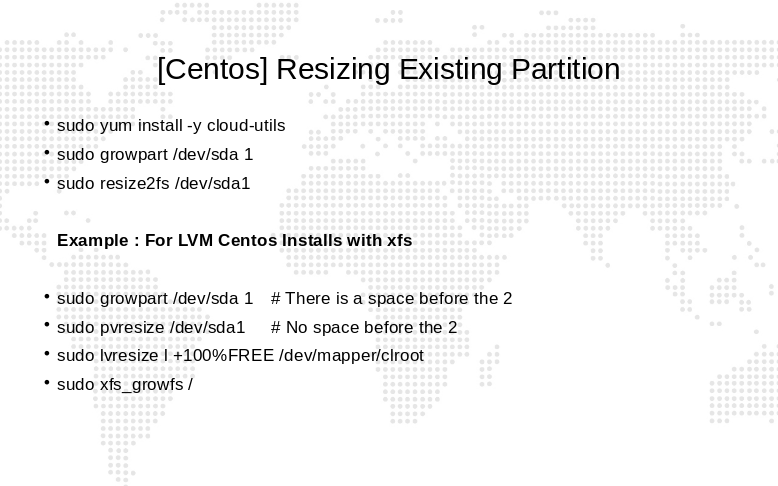
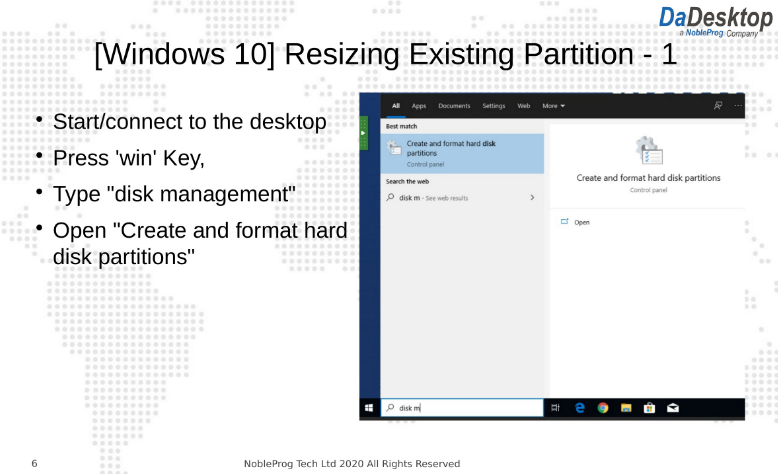
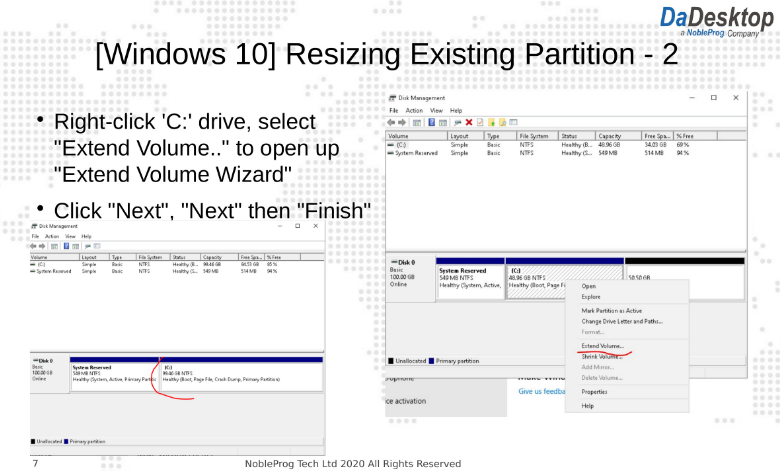
Extending partitions on custom OS templates and AlmaLinux standard templates
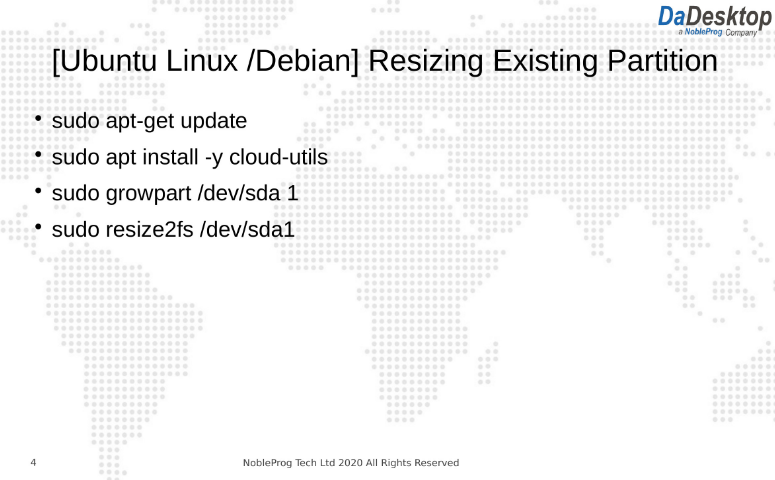
To change your desktop partitions, follow these instructions:
- Open a terminal (or Command Prompt)
- Run the commands listed below