Managing the Deletion Schedule for Standalone Machines
Why is the deletion schedule relevant to you?
If you are utilizing a Standalone machine to extend work on a previous course lab or if you are a Trainer preparing course materials, you do not need to be concerned about this feature.
However, to optimize system resource usage, Standalone machines that remain inactive for more than a month will be scheduled for automatic removal. A reminder will be issued seven days prior to this action.
You have the option to cancel this scheduled deletion.
Procedure for manually scheduling the deletion of a standalone machine.
- During the creation of a standalone desktop, you have the option to define a specific deletion date
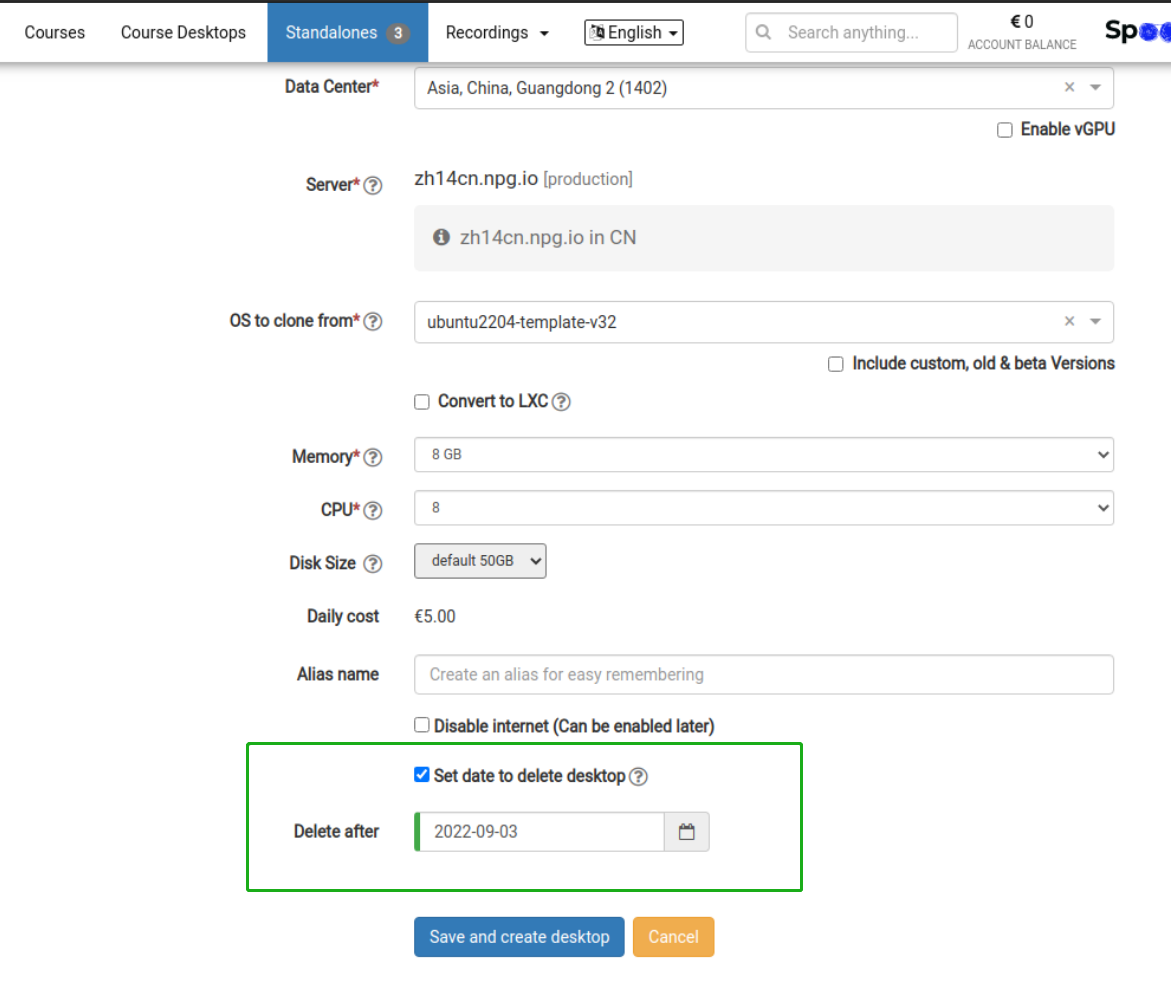
-
Set a date for deleting the standalone machine via the Options menu
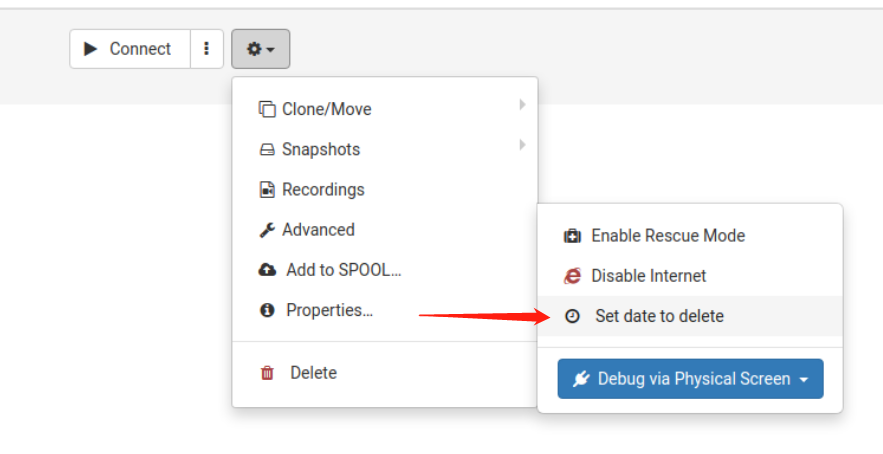
How to remove a scheduled deletion date
1. Access the Options menu and select "Scheduled to delete on"
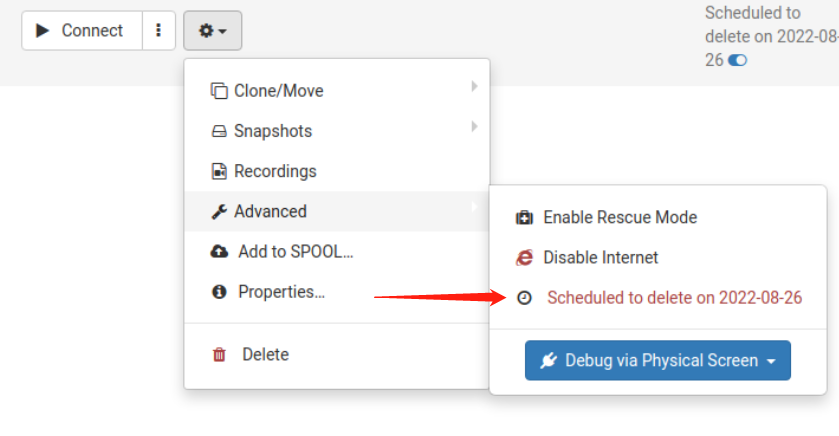
2. Hover with your mouse over the blue toggle icon and click it to instantly clear the deletion date
