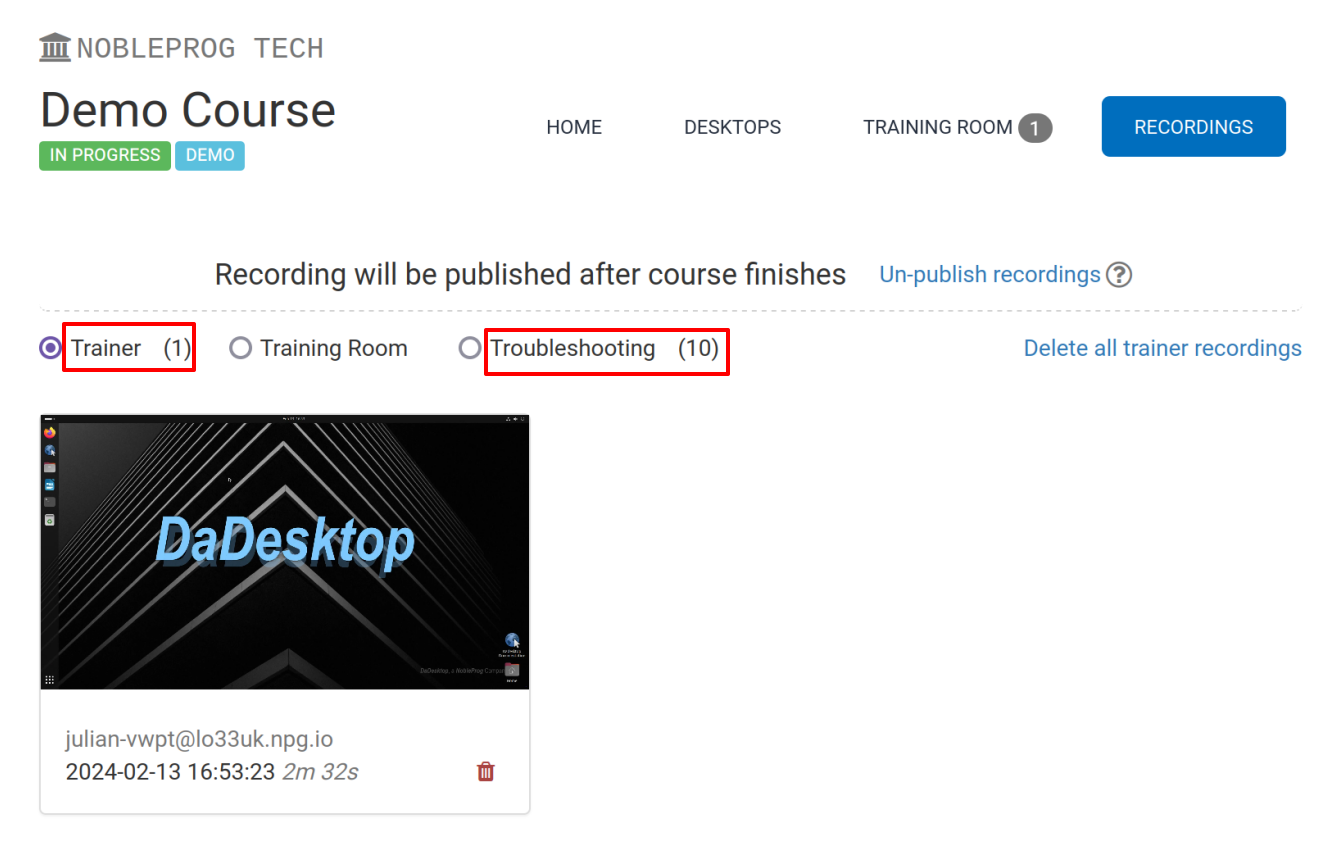
Trainer Recordings
DaDesktop provides a range of methods to capture both desktop and course recordings. You can work with troubleshooting recordings, training room recordings, and trainer recordings.
Trainer recordings capture the activity on the trainer's DaDesktop machine. To begin a session recording of the trainer machine, follow these steps.
- Hit the three vertical dots to open a short dropdown menu, then pick 'Connect (with session recording)'
-
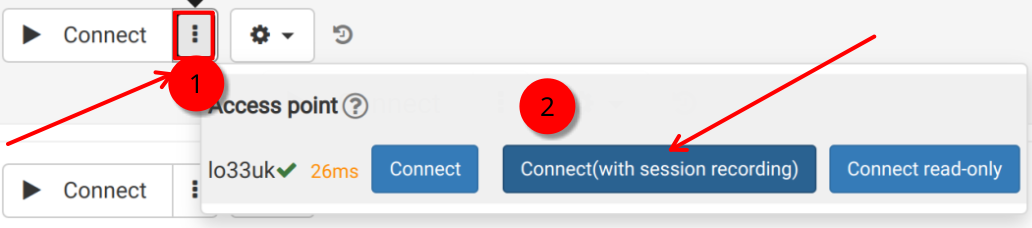
An audio and video recording of the trainer machine starts immediately, but it won't be available for viewing until you close the virtual classroom, at which point the recording is finalised. Note that if you're logged in as a SuperAdmin, an extra menu option lets you watch the live recording as it happens.
- To access and edit your recordings, go to the 'cog' icon and open the Recordings menu.
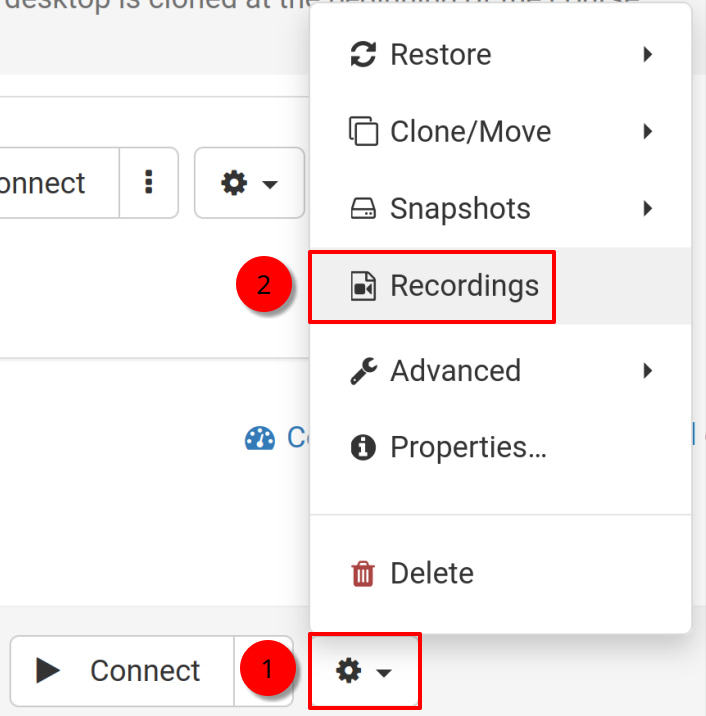
Recordings
There are two ways to watch trainer recordings of the trainer machine.
- You can view recordings through the Recordings menu described earlier. From there, you can play or delete them as needed. The icon with the two spanners marks a 'Troubleshooting Recordings' entry — these are created automatically and aren't meant for presentation, only for troubleshooting when required.
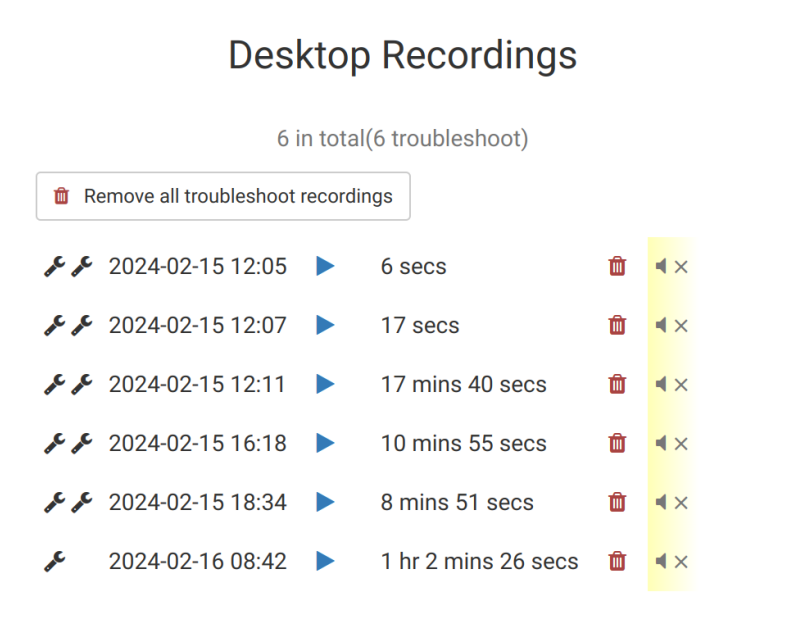
2. By opening the 'Recordings' tab in a course, you can view all three types: trainer recordings, training room recordings, and troubleshooting recordings.