Working with Desktop Snapshots
Understanding Desktop Snapshots
Snapshots give you a straightforward way to back up your virtual machine and restore it whenever you need to.
For instance, if you’re planning an upgrade that might potentially disrupt your system, you can shut down the virtual machine and capture a snapshot beforehand.
Should the upgrade succeed, you can delete that snapshot. If it doesn’t, you can roll back to the machine’s previous state.
Snapshots are available for every type of DaDesktop — Fresh Start, Trainer, Participant, and Standalone machines can all take advantage of them.
Just remember, when you restore a snapshot, the machine will be powered down and ready for you to restart.
Taking a Snapshot
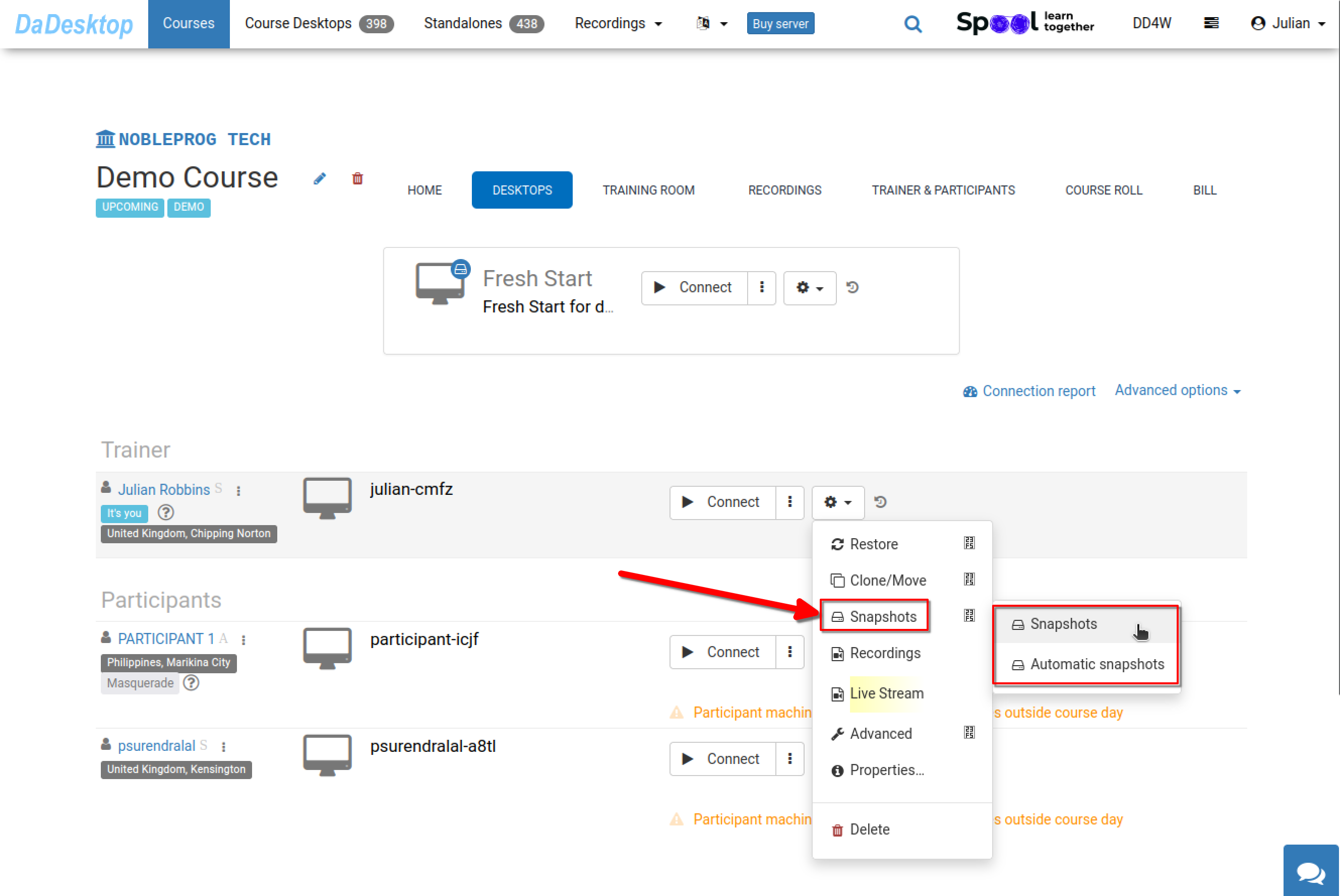
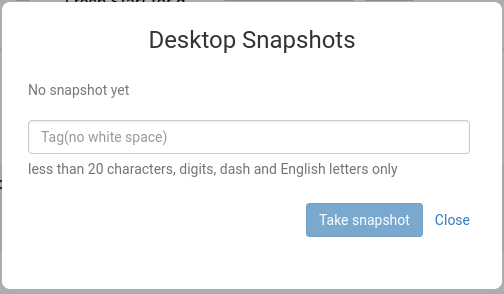
Here’s how to capture a snapshot. Give it a clear, descriptive name so you’ll know exactly when it was taken.
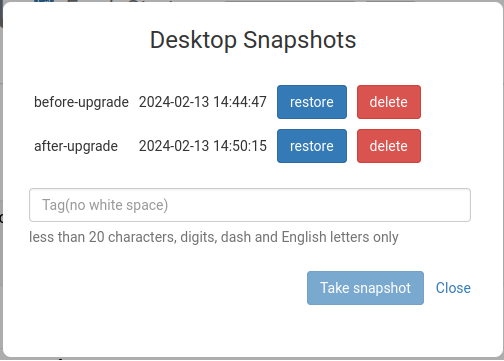
Below, you can see two snapshots taken at different points. You can restore or delete them as needed.
Automatic Desktop Snapshots
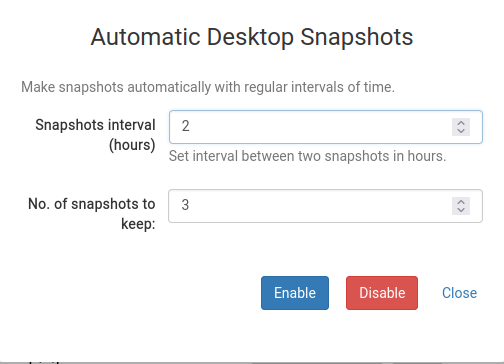
If you’d rather have snapshots taken on a schedule so you never skip them, Automatic Desktop Snapshots are the ideal choice.
Here you can set the number of snapshots to keep and how often new ones are created.