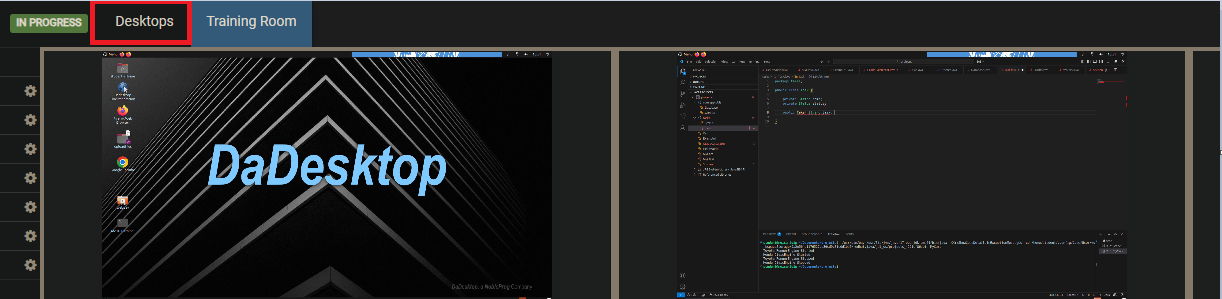
Training Room Screen
The Training Room offers a handy method for entering a course.
With it, users can:
- Manage their virtual desktops (instructors can also take control of participants' desktops)
- See the trainer's desktop in a grid or side-by-side arrangement
- Record their desktop activity
- Pop the desktop out into a separate browser window or onto another monitor, if desired.
- Chat with others
-
Access training materials
Everything takes place inside a browser window. By default, once participants join a course, they're taken straight into the Training Room, making the experience straightforward for newcomers.
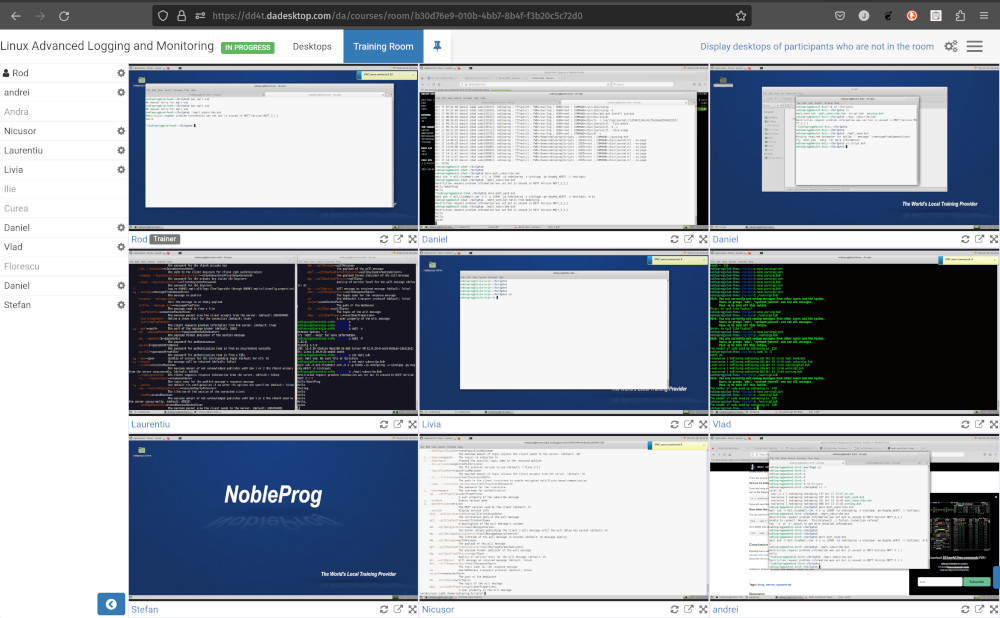
Moreover, trainers can see all participant machines at once and interact with any of them—for example, to assist a learner who's struggling or falling behind. This unmatched ability to monitor every student's screen simultaneously greatly helps trainers recreate the feel of a traditional classroom.
Training Room Display (Trainer's view)
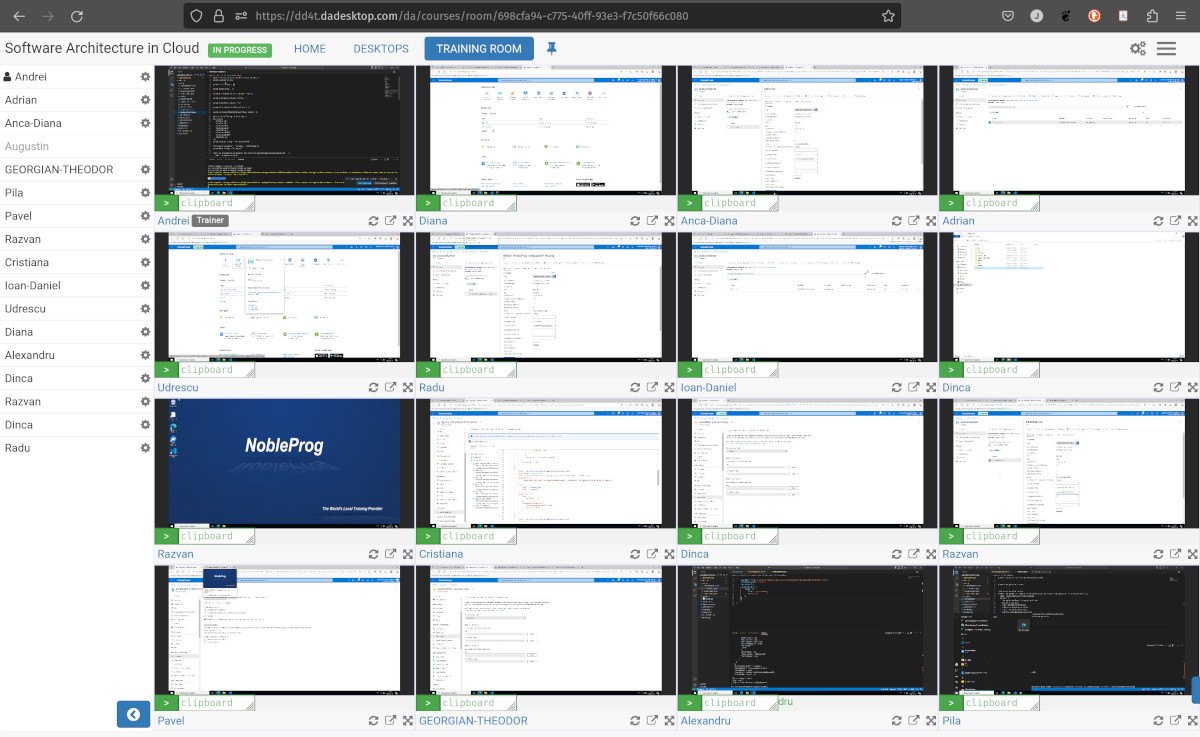
Training Room showing 16 participants (trainer only)
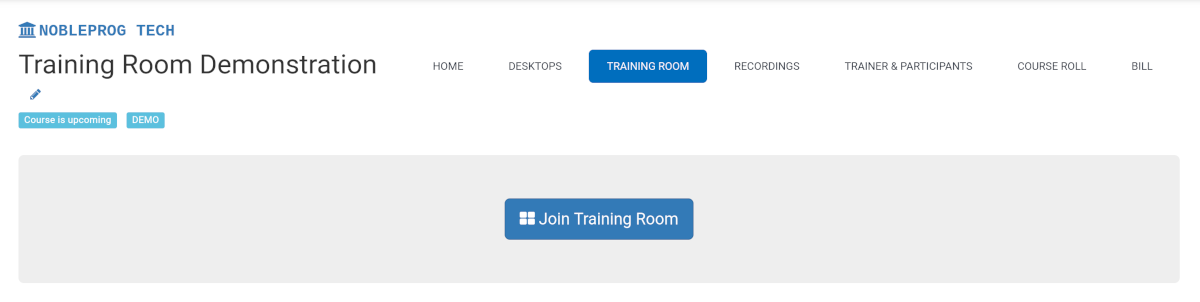
How to join a training room
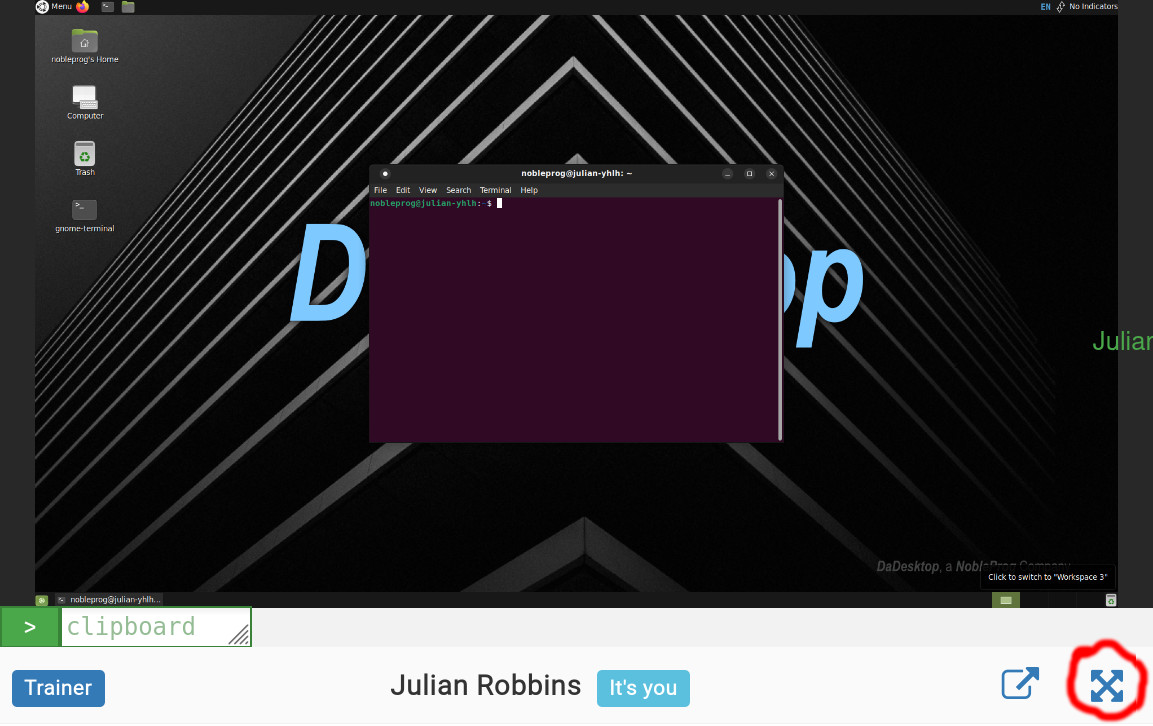
Maximizing the window
Exiting the Training Room view
While it may not be obvious, to leave the Training Room view, simply click the `Desktop` tab once more—it will return you to the Training page.