Recording the Training Room (Trainer’s Desktop)
Trainers can record the Training Room and capture every participant’s desktop. It’s a practical tool for reviewing course material or noting problems students encounter, assisting with troubleshooting for personal notes or support staff.
Training Room View:
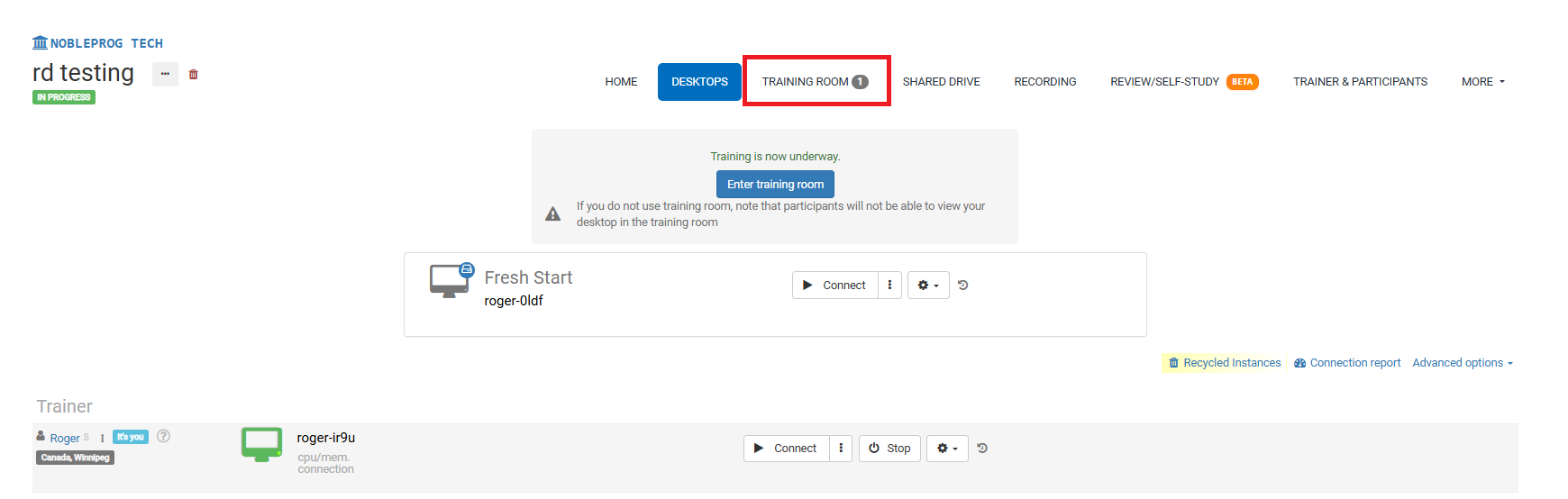
Recording Button
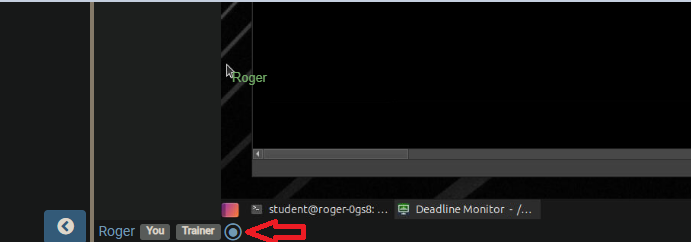
When you’re in the Training Room, find the recording button at the bottom—it sits next to your name and user tags, as highlighted in the screenshot below.
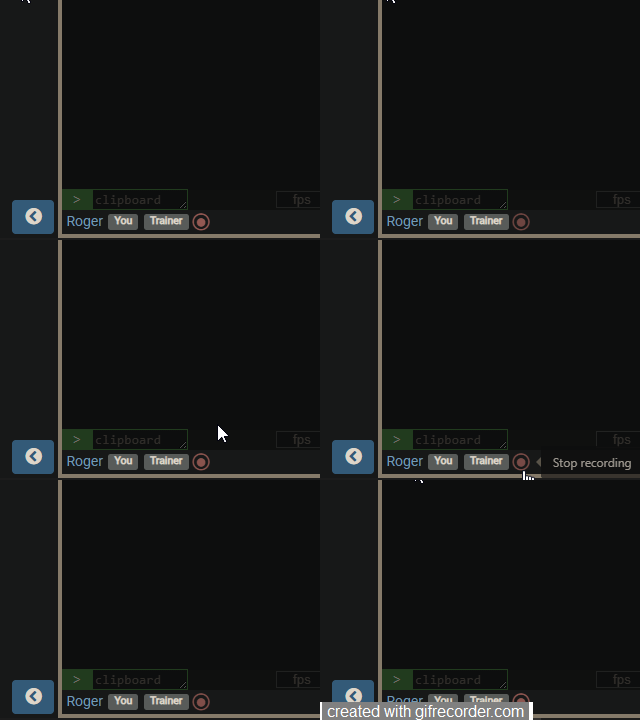
After you activate the button, recording begins and the button flashes red slowly. To stop, simply click it again.
Accessing Recordings
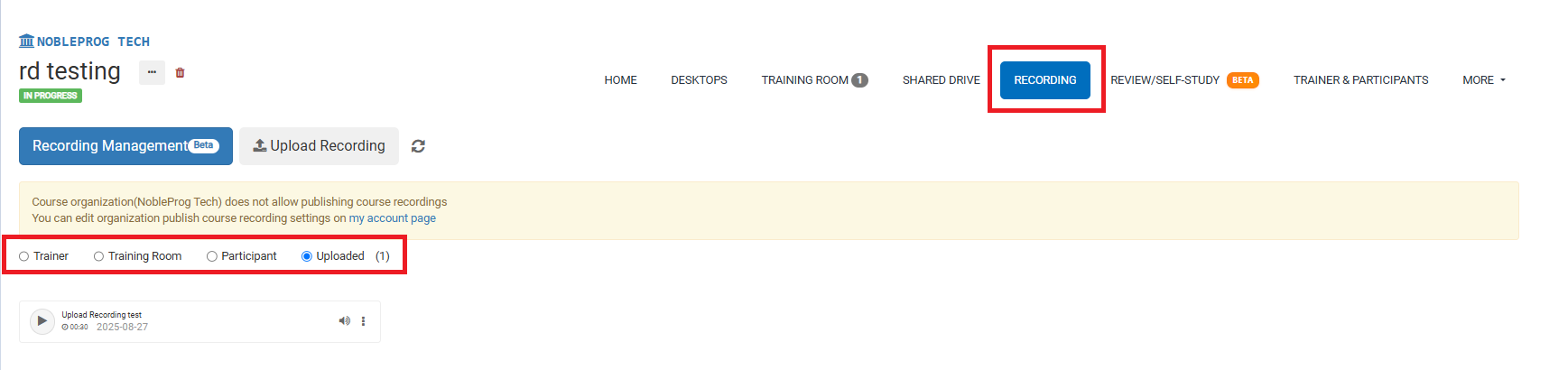
From the course page, head to the `Recordings` tab to find all your saved recordings. Once there, you can pick the type of recording you want to view.